Why Your Printer Cries Wolf About Empty Ink (and How to Check for Yourself)
You are three pages into a school newsletter, a return label, or a recipe you promised to email, and the printer starts blinking. A small amber light, a message on screen, maybe a pop-up that says 'ink low'. It feels like a deadline. It is not. On most inkjet printers, that warning is a chip-fed estimate, not a dipstick. Understanding what the chip is counting - and what it is not - can save UK households a surprising amount of money without turning every print job into a gamble.
The chip is counting, not looking
Most modern ink cartridges carry a small chip that tracks how many drops have been fired, how many pages have passed, and how often the printer has run a cleaning cycle. The printer combines that tally with an estimated page yield - often based on a standard test pattern under lab conditions - and decides when to warn you. It is a bit like a car telling you it needs fuel because of the miles you have driven, not because a sensor has seen the bottom of the tank.
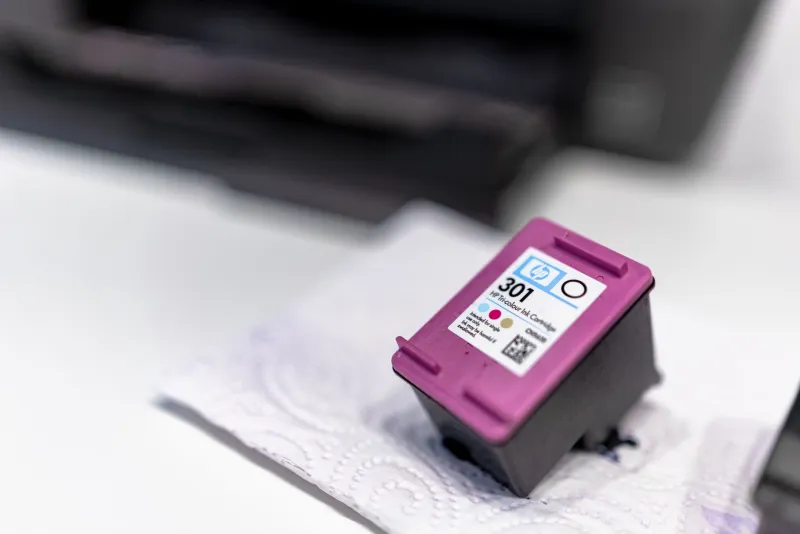
That estimate is useful, but it is not personal. A page of dense photo prints uses far more ink than a page of black text. A tri-colour cartridge is especially prone to early warnings: if one colour runs low, the chip may flag the whole cartridge because the printer cannot separate the compartments. You might still have plenty of cyan and yellow left when the magenta channel is nearly dry.
Why the warning often arrives early
Printer makers build in a margin. Some of it is sensible: a reserve of ink helps protect the printhead from running dry, which can cause heat damage or clogged nozzles. Some of it is conservative estimating. Page yields quoted on boxes are typically measured to a standard, with a set coverage per page, and real-world printing rarely matches that pattern. School worksheets, shopping lists, and the occasional boarding pass are light on ink; full-page photos and craft projects are not.
Compatible cartridges can add another layer. A good compatible chip may report levels differently from an original, and some are deliberately cautious. That does not automatically mean the cartridge is faulty. It means the warning is a guide, not a gauge.
How to check what is actually left
Start with the printer's own status monitor, usually available from the printer software or a small screen on the device. It will show an estimated level, which is still chip-based, but it can help you compare cartridges. Then do something more useful: print a single test page. A nozzle check pattern is ideal because it uses very little ink and shows whether any colours are missing, streaky, or fading. If the pattern is clean and the text is crisp, the cartridge is still doing its job.
Some cartridges have a clear window or a translucent body, so you can hold them up to a lamp and see the ink level directly. Do not shake a cartridge vigorously or stab at it with anything; gentle handling is enough. If you have a spare cartridge, keep it sealed until you need it, and store it upright in a cool, dark cupboard rather than on a sunny windowsill.
The point where ignoring the warning becomes a false economy
There is a difference between a warning that arrives early and a cartridge that is genuinely finished. The warning becomes a problem when print quality starts to slide. Watch for banding - pale horizontal lines across a block of colour - missing sections in the nozzle check, or a colour cast where greys turn green or skin tones look odd. If you are printing a document and the black text looks grey, or a photo has visible stripes, stop and replace the cartridge.
Running a cartridge too far past its useful life can force the printer to work harder. Air can enter the system, nozzles can clog, and repeated cleaning cycles waste the ink you were trying to save. In the worst case, a dried-out printhead means a repair bill that dwarfs the cost of a new cartridge. That is the false economy: saving a few pages now and paying for it with wasted paper, cleaning cycles, and downtime.
A simple routine for UK homes
Keep a small note in your printer drawer or a note on your phone: the date you installed the cartridge, the date the warning first appeared, and roughly how many pages you have printed since. After one or two cartridges, you will have a personal sense of how much warning time you get. If you usually print a handful of pages a week, you may find the low-ink light gives you weeks of useful printing. If you print photos regularly, the gap will be shorter.
Buy from a supplier that lets you ask questions and check compatibility before you commit. At InkJet Cartridge Shop, we would rather you got the last good pages out of a cartridge than swapped it because a light blinked. Treat the warning as a prompt to check, not a command to spend. A quick nozzle check and a glance at the print quality will tell you more than the chip ever can.