Your Printer's Bad Habits: Seven Menu Defaults Worth Changing Today
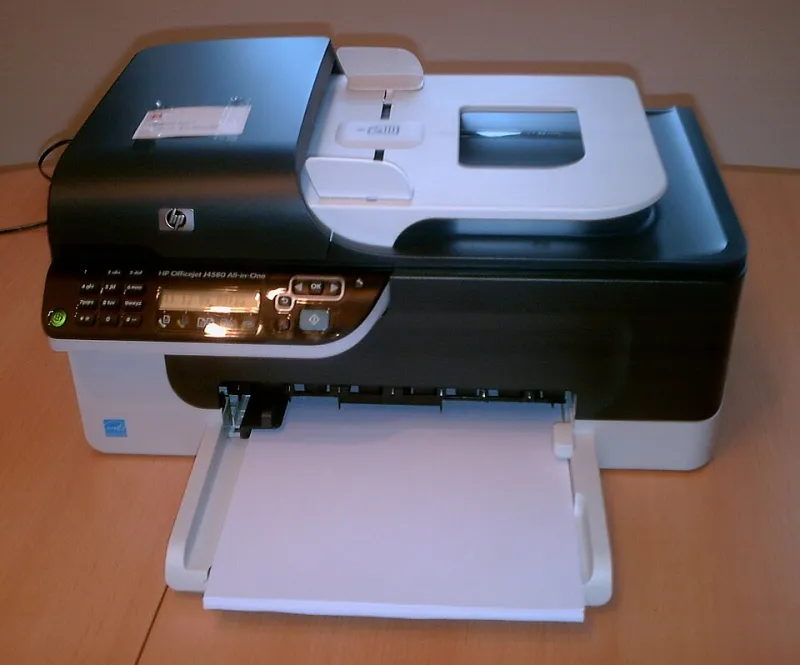
Photo: R-E-AL (talk | contribs | Gallery) (German Wikipedia), CC BY-SA 3.0, via Wikimedia Commons
Most inkjet printers are set up to impress on day one. The demo pages look sharp, the colours pop, and everything feels reassuringly high-quality. Then a few weeks pass, you print a school letter, a council form and a takeaway menu, and the ink gauge has dropped further than you expected. Nothing is broken. The printer is simply following the settings it was given.
The good news is that you do not need a technician to fix most of this. A few menu changes, made once, can make your cartridges last noticeably longer. Here are seven defaults worth checking on a typical UK home inkjet, plus the quick fixes and a rough idea of what they can save.
1. The 'best quality' hangover
Many printers default to the highest quality setting, or something close to it, because it makes the first test print look excellent. For everyday letters, recipes and homework, it is overkill. Best or photo mode lays down more ink, prints more slowly and can use several times the ink of normal mode on plain paper.
The fix: open the print dialog, find the quality or print mode option, and choose Normal or Standard. Keep Best or Photo for actual photographs and anything going on glossy paper. On HP models this is often under Printer Properties > Paper/Quality; on Epson it is usually Quality > Standard; Canon and Brother use similar wording in their driver menus.
Rough saving: if a mono A4 page costs about 0.6p–1.2p in compatible ink on normal mode, the same page on best quality can creep towards 1.5p–2.5p. It sounds small until you print 40 pages a week.
2. Fit-to-page scaling
Fit-to-page is helpful when a document is slightly too wide, but it is often left on by default. It can enlarge pages that did not need enlarging, add extra coverage and make every margin a little inkier. For ordinary A4 documents, actual size is usually the better choice.
The fix: in the print dialog, look for Page Sizing, Scaling or Fit to Page. Choose Actual Size, or Use 100%. Only switch to Shrink Oversized Pages when a web page or PDF is genuinely running off the edge.
Rough saving: modest per page, but it adds up across long PDFs and revision notes. Think of it as stopping the printer from adding a little extra image area you never asked for.
3. Colour mode when black would do
This is one of the biggest quiet offenders. A black-and-white letter does not need colour ink, but many printers will still use colour cartridges to create rich blacks or handle grey text. On some models, colour ink is used even when the page looks completely monochrome.
The fix: choose Grayscale or Black and White in the print dialog before hitting print. On Windows, look under Colour or Advanced; on Mac, check the Presets or Colour Options. If you print a lot of forms and letters, set grayscale as your default preset.
Rough saving: a colour document page might cost 3p–7p in compatible ink, while a mono page can sit around 0.6p–1.5p. For a household printing mostly text, this one setting can change the monthly ink bill more than any other.
4. Borderless printing by default
Borderless printing is lovely for photos. It is unnecessary for letters, invoices and lists. To print to the edge, the printer sprays ink slightly beyond the paper and uses more coverage to avoid white slivers. It can also leave the platen misted, which is not ideal for the next job.
The fix: turn borderless off unless you are printing a photo that needs it. Look for Borderless, Borderless Printing or Fit to Page in the paper settings. On photo paper, borderless is fine; on plain paper, it is usually wasted ink.
Rough saving: small but real. If you print a handful of borderless documents a week, you are paying for ink that never appears on the page.
5. The wrong paper type
Paper type settings control how much ink the printer lays down. Tell it you are using glossy photo paper when you have loaded plain paper and it may put down a much heavier layer of ink. Tell it plain paper when you are using photo paper and you may get poor results and reprints. Either way, the ink budget suffers.
The fix: match the setting to the paper in the tray. Plain paper for everyday documents, Matte or Glossy Photo Paper for photos. If you swap paper often, check the setting each time rather than trusting the last job.
Rough saving: hard to pin down, because a bad match can lead to a reprint. Avoiding one wasted photo print a week is often worth more than a month of tiny tweaks.
6. High DPI for ordinary text
Print resolution settings can be set surprisingly high by default. For text and simple graphics, 600 dpi is usually plenty. Pushing to 1200 dpi or higher uses more ink and time, and on plain paper the extra detail is often invisible.
The fix: in the driver, find Print Quality or Resolution and choose 600 dpi for documents. Save the higher setting for photos or fine line art. If your printer only offers Draft, Normal and Best, Normal is the sensible middle ground.
Rough saving: on a text-heavy week, dropping from a high-resolution default to normal can cut ink use by a noticeable fraction. It is not a precise science, but your cartridges will not complain.
7. Background graphics in browser printing
Printing a web page or email often brings a setting called Background Graphics. Leave it on and the printer may reproduce coloured panels, banners and grey boxes you do not need. That is especially painful when printing directions, recipes or confirmation emails.
The fix: in the browser print preview, untick Background Graphics and Headers and Footers unless you actually need them. Use Reader Mode or Print Friendly view where available. It takes seconds and can turn a three-page ink-heavy print into one clean page.
Rough saving: a colour-heavy web page can use several pence of ink. A plain text version might use less than a penny. For anyone who prints online shopping returns or booking confirmations, this is an easy win.
The ten-second habit that ties it together
Before pressing print, glance at the preview. Check the quality mode, the colour setting and the page size. It is a tiny pause, but it catches most of the bad habits above. If you regularly print the same kind of document, save the good settings as a preset in your printer driver.
It also helps to use compatible cartridges from a reputable UK supplier, because a lower cost per page makes every sensible setting go further. Cheap ink is only a bargain if the printer is not demanding photo-quality output for a shopping list. Check firmware compatibility, keep spare cartridges sealed and upright, and let the printer do ordinary jobs in ordinary mode.
None of this means you should never use Best mode. Photos, school projects and anything going on the fridge deserve the good settings. But for the daily grind of forms, lists and letters, your printer's default habits are probably costing you more than they should. A few menu changes today are the easiest ink saving you will make this week.